Use the Cost Estimator Tool to Determine Your Monthly Bill

Oracle provides a cost estimator tool to help you determine your monthly usage and bill for Oracle Integration.

  1. Go to the cost estimator tool.
  2. From the Select category list, choose Integration.
  3. On the Application Integration card, click Load.
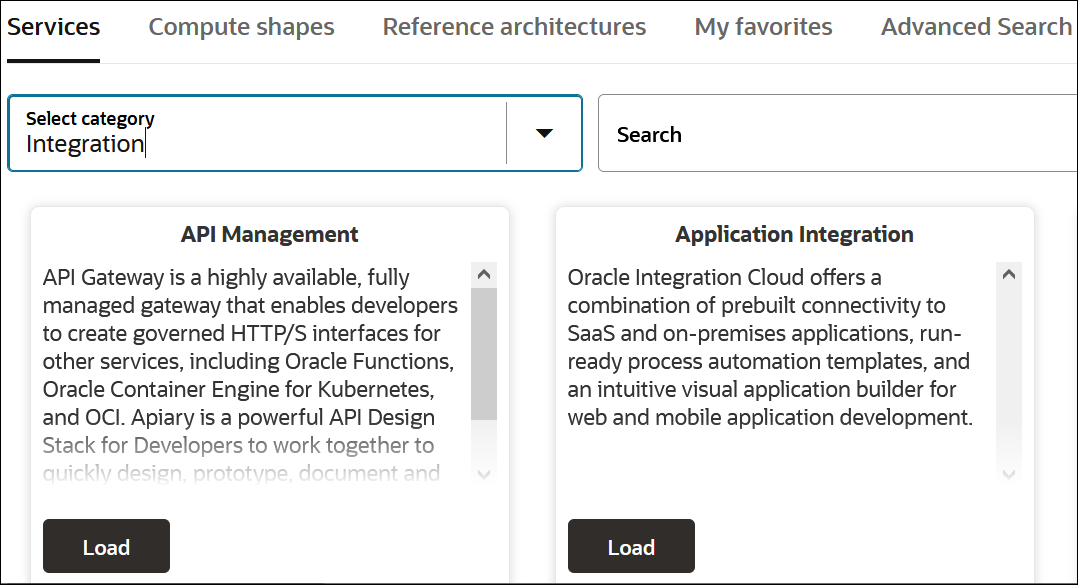
    The Services, Compute shapes, Reference architectures, My favorites, and Advanced Search tabs are shown. The Services tab is selected. The Select category list shows Integration selected. A Search field appears to the right. Below this are boxes named API Management and Application Integration. Both boxes include a Load button.

  4. Select the License Edition for your instance. See Oracle Integration Editions.
  5. Select the License Type for your instance. See License Types.
  6. Enter information about your transaction volume.

    It's critical to understand when peak transaction volumes occur—whether during month-end, quarter-end, or seasonal events. These spikes might last an hour or span several days. Identifying such patterns helps you accurately estimate message volumes.

    Consider the question in the first column, then complete the steps listed in the second column based on your answer to the question.

    Question and details Next steps

    Does your business transaction volume increase at specific times of month or year?

    For example, payroll runs, month-end processing, Black Friday, open enrollment, flash sales

    Yes

    Select Peak seasonal/event-based volume, and enter your Peak daily volume during surge events.

    Make sure to enter the peak daily volume.

    Move on to the next question.

    No

    Clear the Peak seasonal/event-based volume box.

    Move on to the next question.

    Are your transactions evenly distributed throughout the day?

    Examples of transactions are orders, invoices, employee updates, patient records, real-time chat

    Yes

    Select Transactions distributed throughout the day, and enter your Daily business transactions.

    Make sure to enter the daily volume.

    Move on to the next step.

    No

    Clear the Transactions distributed throughout the day box, and enter your Peak hour transaction rate (normal days).

    Make sure to enter the peak hourly volume.

    Move on to the next step.

  7. Enter information about your file load:

    It's also important to understand the frequency, size, and timing of any batch processes you run—such as daily file uploads, scheduled data syncs, or end-of-day processing. This number helps you accurately assess overall message volume and ensure your environment is sized appropriately to handle both real-time and scheduled workloads efficiently.

    Consider the question in the first column, then complete the steps listed in the second column based on your answer to the question.

    Question and details Next steps

    Do your integrations perform any batch file processing?

    For example, CSV files for payroll, XML for purchase orders, JSON exports for analytics, PDF invoices

    Yes

    Select File-based or batch processing involved?, and enter your Max file/batch size (MB).

    For example, “Our largest batch is an employee master file at 150 MB.”

    Move on to the next question.

    No

    You don't need to calculate file load. Skip the remaining questions in this table, and move on to the next step.

    Are these batch files processed concurrently (within the same hour)?

    For example, “During payroll week, we process 5 large XML files within a 30-minute window.”

    Yes

    Select Files processed concurrently within same hour, and enter the number of Files processed concurrently.

    Move on to the next step.

    No

    Clear the Files processed concurrently within same hour box.

    Move on to the next step.

  8. If you have enabled disaster recovery for your instance, select Disaster Recovery.
The number of message packs you should subscribe to for your instance is automatically calculated and shown in the Message Packs box.

If you selected disaster recovery, you'll also see a Message Packs for DR box. You don't need to subscribe to these extra message packs, they will automatically by charged to your account.

Your Estimated Monthly Cost is shown in the upper right corner of the cost calculator.